No API? Journey Can Work Through the Screens Your Staff Already Use

Many campus systems have no API, and "we'll integrate later" stalls pilots. On request, Journey can do one routine step through a system's own screens, set up with your IT team, with a dedicated account and recorded runs.
Key takeaways
- Where a campus system offers an API or an export, use it. Browser automation is for the systems that don't.
- Browser automation does one routine step through a system's own web screens, such as checking a hold or logging a contact note, the way a staff member would.
- The guardrails matter more than the automation: a dedicated account, only the permissions you grant, credentials kept from the model, every run recorded, a stop when a screen looks wrong and a person approving destructive steps.
- Journey offers this on request, set up with your IT team during a pilot and tried first in a test environment. It is not a self-serve feature.
The pilot kickoff is going well until someone from IT says it: the housing system doesn't have an API, and the scholarship portal is hosted by a vendor who sells API access as an add-on nobody budgeted for. "We'll integrate in phase two." Phase two rarely comes. Meanwhile an advisor spends Friday afternoons copying contact notes from one screen into another, which is exactly the work the pilot was supposed to retire.
When a student information system or campus portal has no API, you don't have to wait for one: software can do one routine step through the same web screens your staff already use. Journey offers this on request, set up with your IT team during a pilot. This note covers how it works, its guardrails and where it's the wrong tool.
Why so many campus systems have no API
If you work in higher ed IT, you know the list. Older modules of a student information system that were never opened up. Housing, conduct and scholarship systems bought by one office years ago. Vendor portals where the campus has logins but no programmatic access, or where access costs extra.
Where a system does offer an API or a regular export (rosters, schedules, holds, alerts), Journey connects to that, and it's always the first choice. This note is about the rest.
What browser automation means here
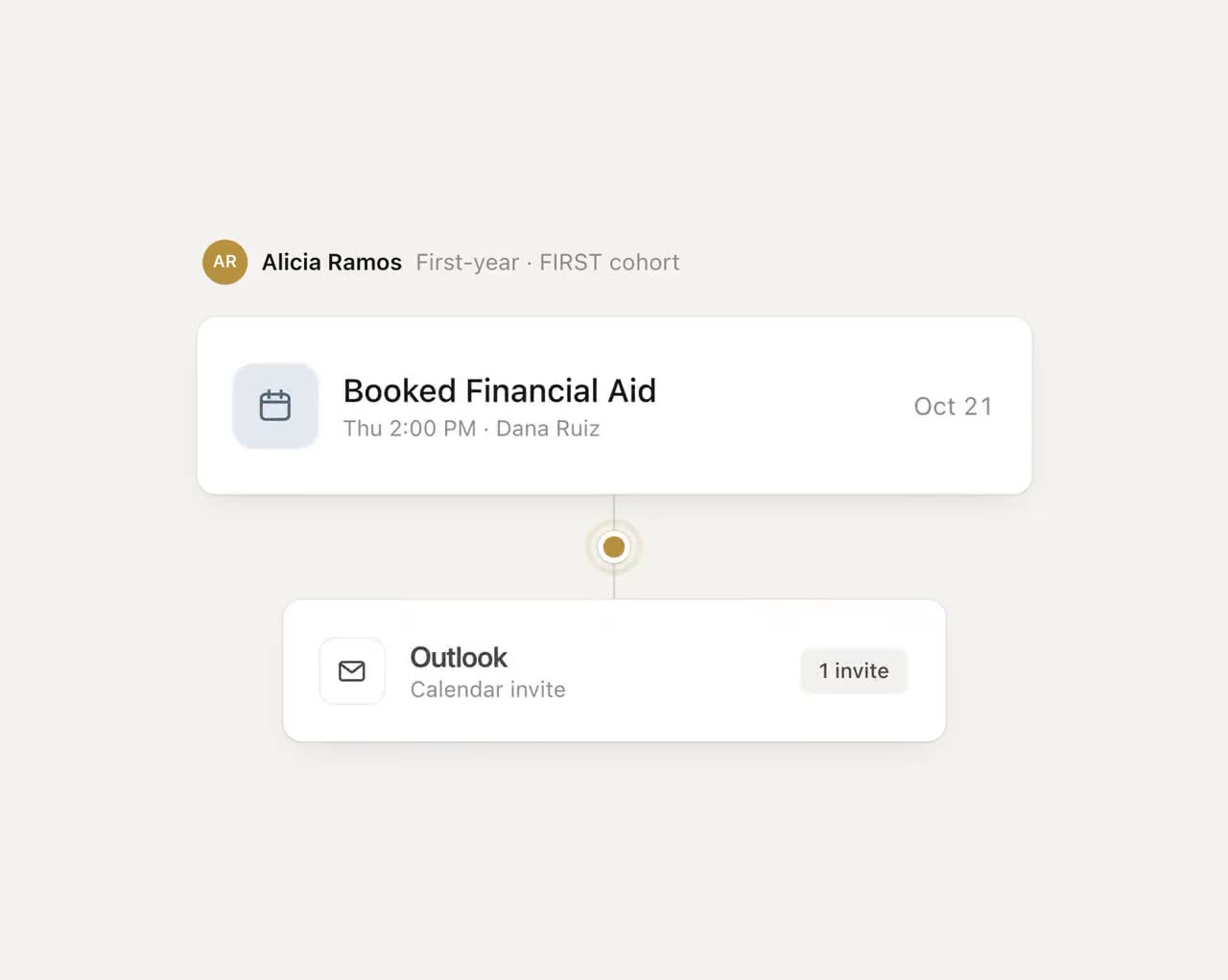
Browser automation is software that operates a web application's screens the way a person does: sign in, search, open a record, read a field, type a note, save. Some campuses know it as robotic process automation. As Journey offers it, the automation does one narrow, routine step that would otherwise land on a staff member's desk, such as logging a contact note after a student books an appointment, checking whether a hold has cleared, or filing a referral form.
It is not a scraper that copies your whole system, and it doesn't make decisions a person should make.
The guardrails
| Guardrail | What it means in practice |
|---|---|
| A dedicated account | The agent signs in as its own user, never as a staff member, so every action is attributable |
| Only the permissions you grant | If the task is reading holds, the account can read holds and nothing else |
| Credentials kept from the model | The sign-in details are never shown to the AI that plans the steps |
| Every run recorded | Each run is recorded so your team can review what it did |
| Stops when a screen looks wrong | If a page doesn't match what it expects, it stops and flags a person instead of guessing |
| A person signs off on destructive steps | Anything that removes, overwrites or submits something consequential waits for approval |
| Test environment first | New tasks run against a test or sandbox copy before they touch live records |
One task, step by step
Here is an illustrative run. A student texted Journey on Tuesday that she paid her balance at the student accounts window. Before Journey tells her she's clear to register, someone has to check that the registration hold is actually gone.
- The request. Journey queues one task: check the hold status for this student. Nothing else.
- Sign in. The agent signs in with its dedicated account, which can view holds but not change them.
- Find the record. It searches by student ID and opens the holds screen.
- Check the screen. It confirms the page looks the way it did in testing: the right title, the holds table where it should be. If the vendor changed the layout overnight, it stops here and a staff member gets the task instead.
- Read and record. It reads the hold status and saves a record of the run.
- Hand back. If the hold is gone, Journey texts her that registration is clear. If it's still there, a person at student accounts gets the context, and she hears that someone is looking into it.
No record was changed, so no sign-off was needed. If the task had been "remove the hold", a person would approve that step every time.
Where it fits, and where it doesn't
Browser automation is good at low-volume, repetitive steps on screens that rarely change: a contact note, a status check, a referral form. It is the wrong tool for:
- Bulk data. Thousands of rows belong in an export, even a nightly file, not a robot clicking through pages.
- Screens that change every term. Every layout change means the agent stops, which is safe but slow.
- Judgment calls. Approving an appeal, deciding on aid or clearing a conduct hold stays with people.
- Speed-critical work. It's slower than an API, so it suits tasks measured in minutes.
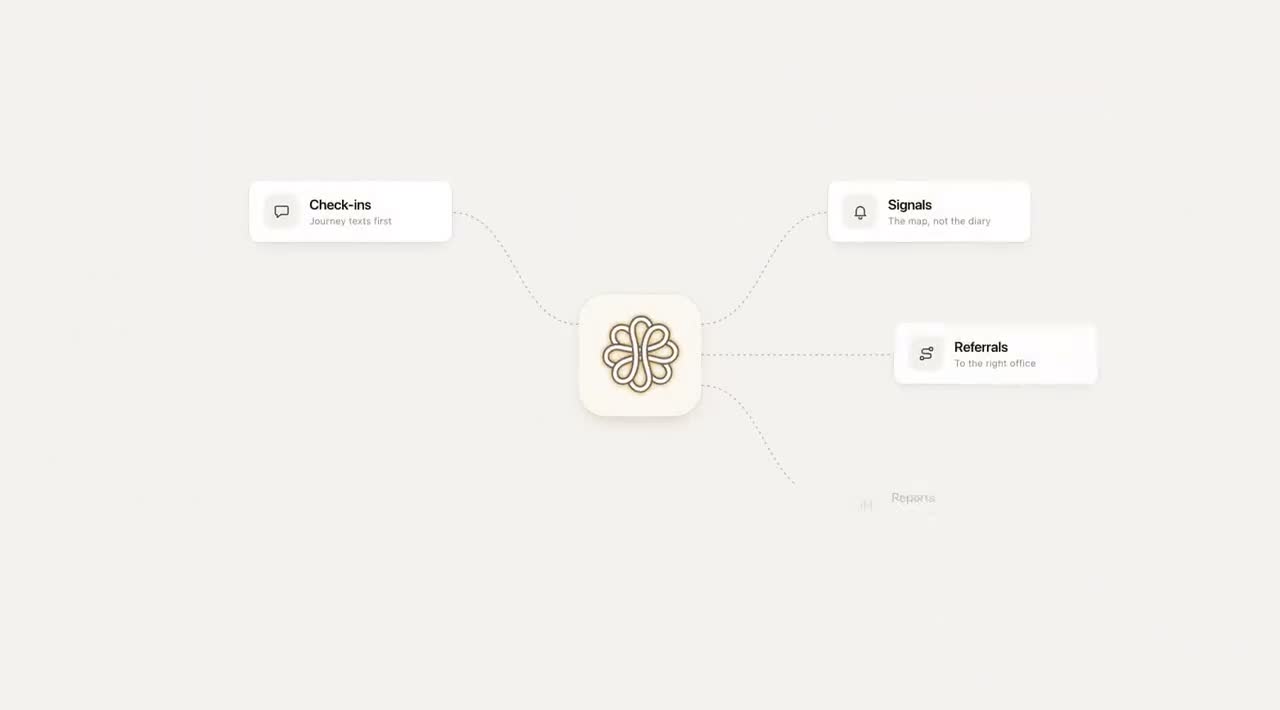
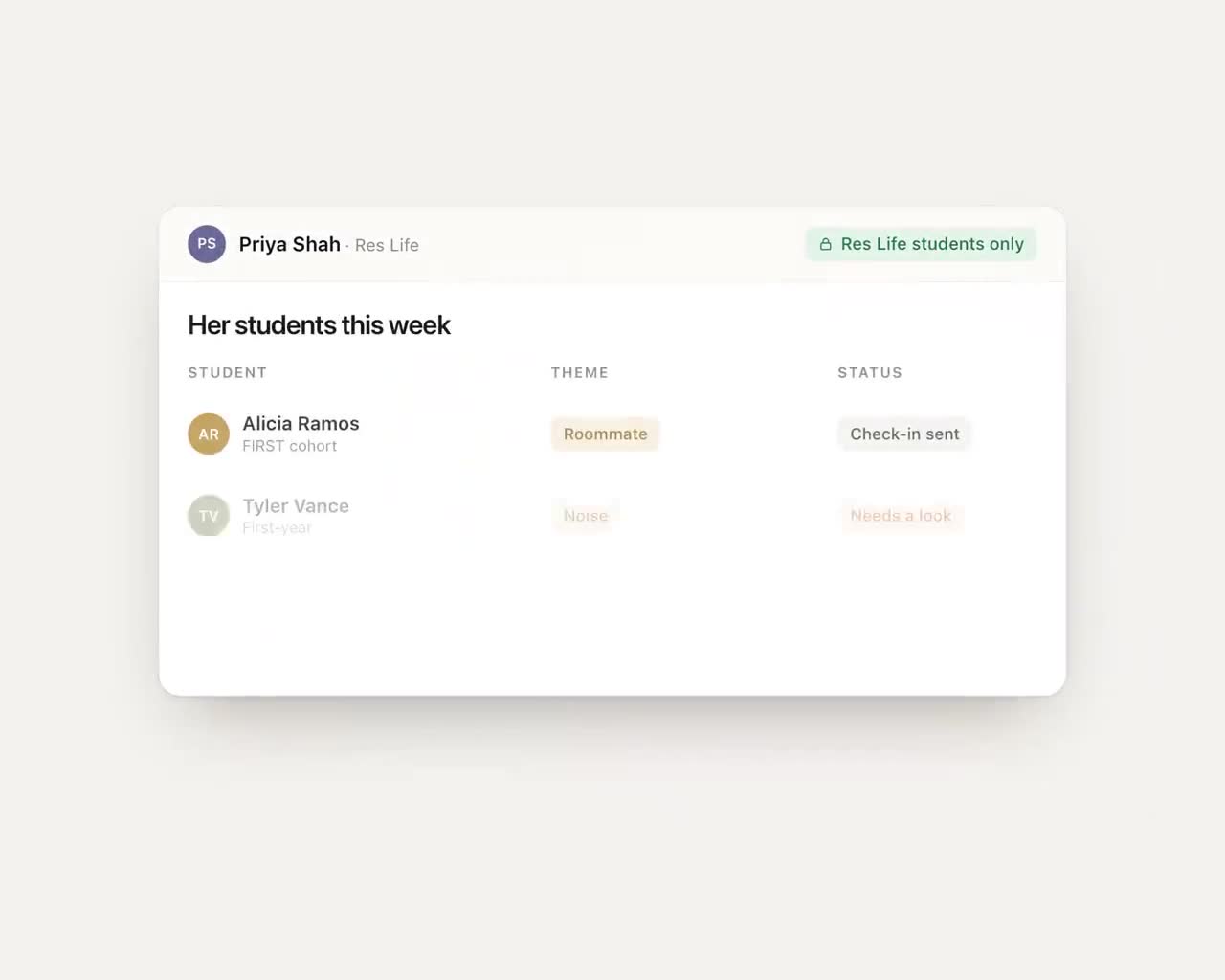
The demo at the top of this page and the clip below show where we're headed: a case closed in Journey also closes in Navigate360. That two-way sync isn't built, so today closing the case in your case-management system is still a staff step.
How we set it up with your IT team
This is an option we set up with your IT team during a pilot, on request, not a self-serve feature you switch on. Setup, in order:
- Pick one task with a clear payoff, usually the one an advisor complains about most.
- IT creates the dedicated account with the narrowest permissions that task needs.
- We run it in your test environment and review the recorded runs together.
- You decide which steps need a person's sign-off and who that person is.
- It moves to real records. Disabling the account stops it immediately.
Don't let "phase two" stall the pilot
A missing API is a real constraint, but it shouldn't decide whether students get help this term. Start with the systems that have exports, add one carefully scoped task where they don't, and let the recorded runs make the case for the next one. For the wider picture, see our guide to legacy campus systems without APIs.
Frequently asked questions
How do you integrate with a student information system that has no API?
Use an export if there is one. If there isn't, software can do a narrow, routine step through the system's web screens with its own account and limited permissions. Journey can set this up with your IT team during a pilot, on request, with every run recorded for review.
Is browser automation the same as RPA?
It's the same family of technique: software operating an application's screens the way a person would. What matters on a campus is the scope and the guardrails, such as a dedicated account, minimal permissions, recorded runs and a person signing off on anything destructive.
Is it safe to let an AI agent log in to student systems?
It can be, with the right limits. The account should be dedicated and narrowly permissioned, credentials should never be shown to the model, every run should be recorded, and anything that changes or removes records should wait for a person. Try it in a test environment first.
What tasks are a bad fit for browser automation?
Bulk data transfers, which belong in an export; screens that change often; and anything that needs judgment, such as approving an appeal or deciding on aid. It's also slower than an API, so it suits tasks measured in minutes.