Legacy Campus Systems Without APIs: A Practical Integration Guide

When a campus system has no API, you still have options. Which tasks suit software that works through the screens, the safeguards to require, how to set it up with IT, and when to wait for a real integration.
Key takeaways
- Check for a saved report or a database view first. A scheduled file beats anything more complicated.
- Working through a system's screens suits low-volume, clearly structured tasks like reading a holds list or logging a contact note, never anything that moves money or changes grades, aid or standing.
- Require a dedicated, least-privilege account, a written task list, a record of every run, a stop whenever a screen looks different, sign-off for anything hard to undo, and tests in a non-production copy first.
- Wait for a real integration when an API is coming soon, volume is high, the screens change often or IT says no.
Every campus has one. The housing system bought before anyone on the current IT team was hired. The scholarship portal a vendor stopped updating. The student accounts screens that only export to PDF. Every Monday, someone in student success opens one of them in one window and a spreadsheet in another and copies, row by row, for an hour.
Legacy system integration in higher education tends to stall on whether the system has an API. When it doesn't, the usual options are a vendor project with no date, a nightly file, or that person copying. There's another one: software that works through the system's own web screens, the way that person does, with safeguards a person copying by hand never had. It's slower than an API and stops when a screen changes, so it suits a short list of tasks, and it only happens with campus IT's agreement.
Why so many legacy systems in higher education have no API
The reasons are usually ordinary. The system was bought before connecting systems was expected. The vendor sells its integration module separately and the license never included it. The campus customized an on-premises install so heavily that the vendor's API no longer matches it. Someone built the system in-house a decade ago and has since left. Or the API exists, and the IT team's backlog runs to next fall.
None of that changes the student's week. The hold still blocks registration whether or not the system that holds it can talk to anything.
Four ways to get data out of a system without an API
| Option | What it is | Freshness | When it fits |
|---|---|---|---|
| Copying by hand | Staff read one screen and type into another | Whenever someone has time | Very low volume, and only as a stopgap |
| A saved report or export | A report the system can already produce, saved as a file on a schedule | Usually daily | Read-only lists such as holds or flagged students |
| Reading the database directly | IT grants read access to tables or a reporting view | Close to real time | On-premises systems where IT is comfortable with it and the vendor allows it |
| Working through the screens | A dedicated account follows the same steps a staff member would | As often as scheduled | Low-volume reads and writes where no report or file exists |
Always check the second and third options first. If the system can already save the report you need, a scheduled file is simpler than anything else on this page. Back offices call the fourth option robotic process automation, and finance and HR teams have used it for years. The idea is old. The safeguards are what make it acceptable around student data.
Which tasks suit working through the screens
| Task | Fit | Why |
|---|---|---|
| Reading a list that only exists on a screen, such as this morning's new holds | Good | Read-only, clearly structured, done the same way every time |
| Checking whether a hold has cleared before a reminder goes out | Good | One lookup per student, and it prevents a wrong text |
| Logging a contact note in a second system | Good | A small, defined write that saves double entry |
| Closing a case once the outcome is confirmed | Good, with sign-off | Hard to undo, so a person approves the batch |
| Anything that moves money, changes aid, grades, enrollment or academic standing | No | These need a person's judgment and an audit trail in the system itself |
| High-volume or real-time work | No | Screens are slow, and heavy use can load a system staff depend on |
| Systems scheduled for replacement this year | Usually no | Wait and connect to the new one properly |
The safeguards, one by one
These are the conditions to agree on with IT before the first run. If a vendor can't meet one of them, don't do it.
A dedicated account with the smallest role
IT creates an account named for what it is, such as "journey-automation", never a staff member's own login. It gets access to only the screens the task needs and is read-only unless a write is part of the agreed task. Its credentials are stored in a secrets vault, rotated on IT's schedule, and the account is disabled when the pilot ends. How it signs in, including any multi-factor step, follows IT's policy for service accounts. Nobody works around a login control.
A written task list
Each task is written down step by step: which screen, which fields, what is read, what is written, and why. The system's owner and IT approve the list. Anything not on it doesn't happen.
Every run recorded
Each run leaves a record your team can open: when it started and finished, every step, what was read and written, and a screenshot of each screen where something was written. If a staff member asks "what happened to this student's case on Tuesday?", the answer is one click away.
Stop when a screen doesn't look right
Before each step, the screen is checked against what's expected: the page title, the field labels, and the student ID on the screen matching the one in the task. If anything differs (a new pop-up, a renamed field, a vendor upgrade over the weekend), the run stops and a person is told. It never guesses.
A person signs off on anything hard to undo
Closing cases, changing a status, removing anything: these wait in an approval queue. A named staff member reviews the batch, say every Friday at 3 PM, and approves or rejects each item.
Test first, then watch
Runs start in a test copy of the system, which many campuses keep for upgrades, using test records. Then come read-only runs in the live system. Then a week of supervised runs, with a person reading every record daily, before anything runs on its own.
Limits and an off switch
Runs happen in agreed windows, away from registration night and the end-of-term crush, and at a pace that doesn't slow the system for staff. IT has one switch that stops everything, and knows where it is.
A regular audit
Once a month, your team and IT review the runs, the stops, the approvals and any errors. Once a term, IT reviews the account's access and removes anything no longer needed.
Setting it up with campus IT
- Name the task and the system's owner. One task to start. "Each weekday at 7 AM, read the new holds list" is a good first one.
- Check the license. Some vendor agreements restrict automated access or ask for notice. IT or procurement can check before anything else happens.
- Create the account and role. IT does this, with the smallest permissions that cover the task list.
- Write and approve the task list. Step by step, signed off by the system's owner and IT.
- Run it in the test environment. Review the records together.
- Run it supervised in production. A week of daily review of every record.
- Move to a monthly audit. Add the next task only when the first has run cleanly.
Done this way, the first task can run during a pilot without becoming an IT project. It also gives IT something concrete to evaluate: a real account, a real task list and real run records, instead of a slide.
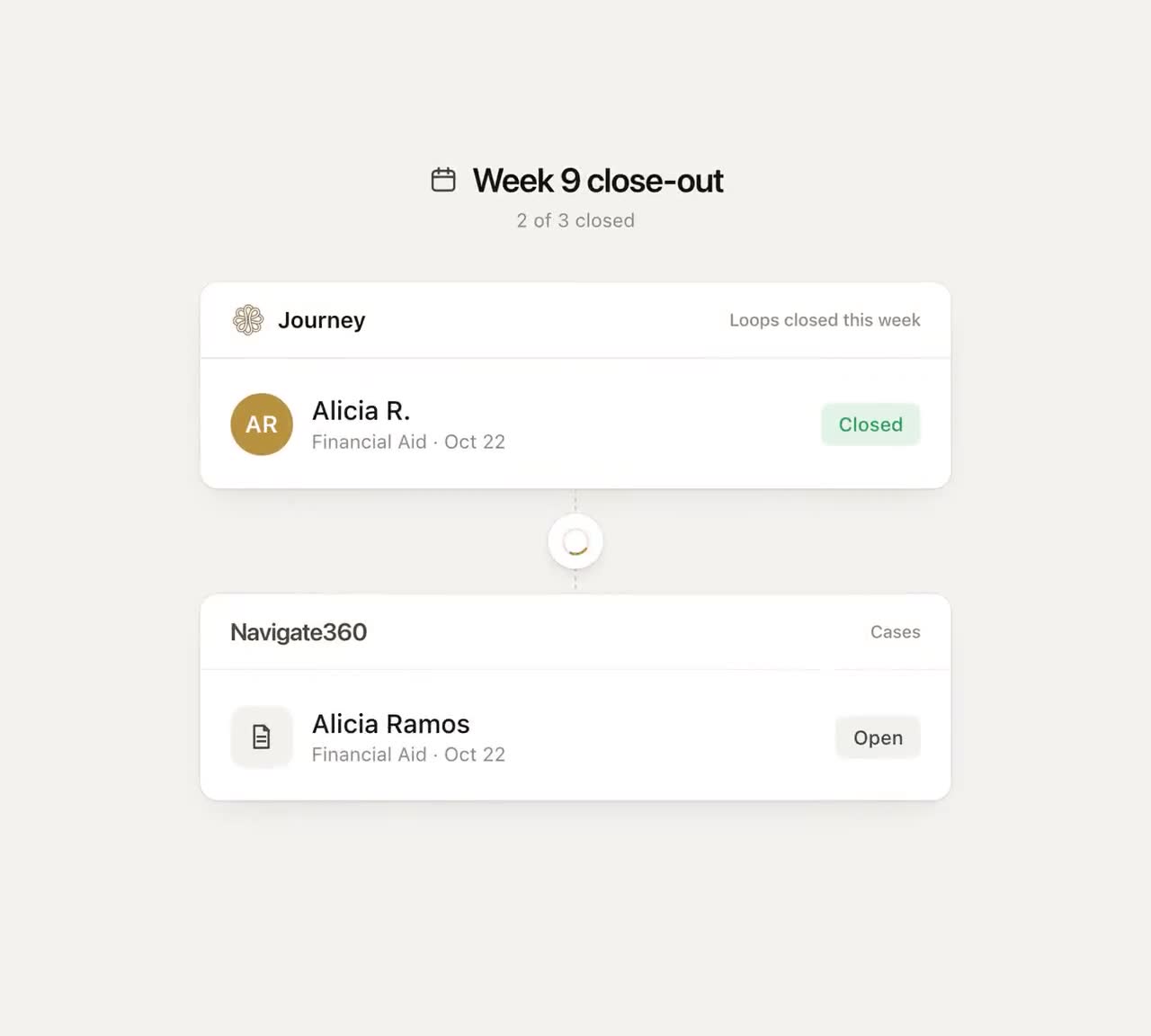
That's the end state worth aiming for: every case closed in both places by Friday, and nobody retyping notes on Monday. Closing finished cases in a second system, with a person signing off on each batch, is the kind of small, repeated write the screen-based option is meant for, wherever the system has no API to do it.
When to wait for a real integration instead
- The vendor ships an API in the next upgrade. A few months of a nightly file is better than building around screens that are about to change.
- The volume is high. Thousands of records a day belong in an API or a database view.
- IT says no. Some data is sensitive enough that a campus won't allow a screen-based account near it. That's a reasonable call.
- The screens change often. If the vendor redesigns every term, the stops will be constant.
- You need it within minutes. Screen-based runs happen on a schedule.
- A nightly file already works. Simple wins.
How Journey offers the screen-based option
Journey connects to campus systems by API or export wherever one exists. Where a system has neither, Journey can work through its web screens the way a staff member would, with these safeguards: a dedicated account with only the permissions you grant, a record of every run, a stop whenever a screen doesn't look as expected, a person's sign-off on any step that's hard to undo, and a first run in a test environment. It's an option we set up with your IT team during a pilot, one task at a time. It runs on a schedule rather than live and is slower than an API, so it fits the low-volume tasks in the table above and nothing larger. Our product note, No API? Journey Can Work Through the Screens Your Staff Already Use, covers the short version. For how this fits alongside the bigger systems, see Connecting Student Success Tools to Banner, Canvas and Navigate360.
Questions to ask any vendor offering this
- Whose login does it use? (The right answer is a dedicated account IT creates.)
- What can that account see and change, and who decided?
- Can I see a real run record?
- What happens when a screen changes overnight?
- Which steps wait for a person's approval?
- Can we run it in our test environment first?
- How do we turn it off, and how fast does it stop?
Start with one read-only task on one system, run it for a month, and read the records with IT. That month will tell you more than any demo, including ours.
Frequently asked questions
How do you integrate a campus system that has no API?
Start with what the system can already produce: a saved report or export on a schedule, or read access to a reporting view if IT allows it. Where neither exists, software can work through the system's web screens the way a staff member would, under safeguards agreed with IT.
Is screen-based automation (RPA) safe for student data?
It can be when it runs under a dedicated account with only the permissions a written task list needs, records every run, stops when a screen doesn't match what's expected, waits for a person's approval on anything hard to undo and is tested in a non-production copy first. IT should own the account and the off switch.
What tasks should never be automated through a student system's screens?
Anything that moves money or changes financial aid, grades, enrollment or academic standing, along with high-volume or real-time work. Those need a person's judgment, a proper integration, or both.
When should we wait for a vendor API instead?
When the vendor is shipping one soon, when volume runs to thousands of records a day, when the screens change every term, when you need data within minutes, or when IT decides the data is too sensitive for a screen-based account.