Connecting Student Success Tools to Banner, Canvas and Navigate360

What Banner, Canvas and Navigate360 each hold, what a student texting tool actually needs from them, how API, export and screen-based connections compare, how to ask for less data, and who signs off.
Key takeaways
- Banner holds enrollment, schedules, holds and accounts; Canvas holds courses, due dates and submissions; Navigate360 holds appointments, alerts, cases and notes. Each has a different owner.
- A texting layer needs a short list: roster and consent, advisor assignment, class times, holds, missing work, early alerts, and a way to write outcomes back.
- API, scheduled export and working through the screens each suit different jobs. For a pilot, the first roster can simply be a file.
- Write a one-page data dictionary and bring the registrar, IT security, counsel and each system owner together once.
A texting tool that doesn't know a student has a registration hold will cheerfully remind her to register. One that doesn't know her class schedule will text her in the middle of a 9 AM lab. The data that makes a nudge timely lives in three places on many campuses: the student information system, often Banner; the learning management system, often Canvas; and the student success platform, often Navigate360.
Banner, Canvas and Navigate360 integration usually means three different connection methods, three different owners and three different approvals. The work goes faster when you know what each system holds and ask each owner for only what the texting needs.
What Banner, Canvas and Navigate360 each hold
Every campus configures these systems differently, so treat this as the general shape and check the specifics with each system's owner.
| System | What it is | What it holds that matters here | Usual owner |
|---|---|---|---|
| Banner, from Ellucian | A student information system: the institution's record of who is enrolled in what | Enrollment, class schedules, holds, student accounts, financial aid, contact details, advisor assignments | The registrar and the enterprise systems team, with aid and the bursar for their parts |
| Canvas, from Instructure | A learning management system: where courses run day to day | Course enrollments, assignments and due dates, submissions (including missing and late ones), grades, course activity | Academic technology or the teaching and learning center |
| Navigate360, from EAB | A student success platform used by advisors, coaches and support offices | Advising appointments, early alerts and the cases they open, notes, outreach campaigns, risk indicators | The advising or student success office |
Getting data out of Banner
Ellucian offers API access to Banner through its Ethos integration platform. Your IT team creates an application in Ethos Integration, grants it the specific resources it may read or update, and issues its API key, so a vendor gets access through your campus rather than signing up for it. Many campuses also produce scheduled extracts from Banner's reporting tables, which is often the quickest route for a pilot. Which options you have depends on your Banner version, how it's hosted and what your campus licenses.
Getting data out of Canvas
Canvas has a documented REST API. A Canvas administrator issues a developer key and can limit which API endpoints it may call. You'll also hear about LTI, the standard for tools that run inside a course; a texting layer usually doesn't need to live inside a course, so the API is the relevant route. For bulk data, Instructure offers a separate data service that many campuses use for reporting.
Getting data out of Navigate360
Navigate360 usually receives student data from the student information system already, so some fields could come from either place. Pick one source per field and stick to it. What an outside tool can read from or write to Navigate360 depends on your contract and configuration; many teams start with reports and exports. Your EAB contact can tell you what's available at your campus.
What a texting layer actually needs
Start from the nudges you plan to send and the handoffs you plan to make. Every field should map to one of them. For most student success texting, the list is short.
| Data | Why it's needed | Usually from | How fresh |
|---|---|---|---|
| Roster: name, mobile number, student ID, cohort | Who to text | Banner, or a file for the pilot | Start of term, then weekly |
| Texting consent | Whether you may text them at all | Wherever your campus records it | Before the first text |
| Advisor or coach assignment | Who gets the handoff | Banner or Navigate360 | Weekly |
| Class meeting times | Never text during class; time nudges around the week | Banner | Start of term and after add/drop |
| Holds: type and the office that clears it | Reach students before a hold blocks registration | Banner | Daily during registration |
| Missing assignments and due dates | Time a study nudge to the week it matters | Canvas | Daily |
| Early alerts | Reach the flagged student the same day | Navigate360 or your alert tool | Daily or faster |
| Outcomes: contacted, met, resolved, a note | Close the loop in the system of record | Written back to Navigate360 | As they happen |
Class times don't have to come from Banner at all. In Journey, a student can text a screenshot of their class timetable, and from then on no nudge is sent during a class.
Notice what's missing: grades, GPA, risk scores, financial aid packages and demographic data. Some programs have a good reason for one of these. Most texting work doesn't need them, and every field you don't request is one you don't have to protect.
Three ways to connect
| Method | How it works | Good for | Watch for |
|---|---|---|---|
| API | The systems call each other with a key that's limited to specific data | Frequent updates, and writing outcomes back | IT time to set up, licensing, limits on how many calls are allowed |
| Scheduled export | A file, often a nightly CSV, dropped to a secure location | Rosters, schedules, hold lists | A day's delay, and files that carry more columns than anyone asked for |
| Working through the screens | A dedicated account does what a staff member would do in the system's web pages | Systems with no API, and low-volume tasks like closing finished cases | Breaks when screens change, so it needs careful safeguards |
For a pilot, the first roster can simply be a file. The other connections can follow in order of usefulness once you see which nudges matter most.
Ask for less data
Data minimization is the habit that makes the security review shorter and the risk smaller.
- Write a data dictionary first. One line per field: its source, why it's needed, who sees it, how long it's kept.
- Use the student ID, never a Social Security number.
- Take the hold type, not the balance. "Bursar hold, cleared at the student accounts office" is enough to send the right nudge.
- Prefer flags to grades. "Two missing assignments in BIO 110" is enough for a study nudge; the grade adds risk without changing the message.
- Be careful with financial aid data. Some aid information carries restrictions beyond FERPA. Ask your aid director and counsel before any of it leaves the aid office's systems.
- Agree on deletion. What's deleted when a student opts out, and everything at the end of the agreement.
Journey processes student data only under a written agreement with the institution, as a school official with a legitimate educational interest, and SOC 2 certification is in progress. None of this is legal advice; your counsel should review the agreement and the data list together.
Who signs off
| Who | What they approve |
|---|---|
| Registrar | Which student record fields leave Banner, and the basis for sharing them |
| IT security and the CIO | The vendor security review (many campuses use EDUCAUSE's HECVAT questionnaire), the connection method, accounts and keys |
| Counsel or the privacy officer | The data agreement |
| Each system's owner | Academic technology for Canvas, advising for Navigate360: what's read, and what's written back |
| Financial aid director | Any aid data at all |
| Student success lead | The purpose, and how staff will use what comes through |
Bring them together once, early, with the data dictionary on one page. Six separate email threads will take longer than one meeting. For the questions IT is likely to ask, see The Security Review.
Banner, Canvas and Navigate360 integration in a sensible order
- Roster and class times, by export or file. Enough to text the right students at the right hours.
- Holds, during the registration window. A daily hold list is one of the most useful feeds you can add, because holds have deadlines.
- Early alerts. By export or report from Navigate360 at first, so flagged students hear from someone the same day.
- Outcomes back to the system of record. Start with staff adding notes by hand, then move to an API or the screen-based option so nobody enters the same note twice.
- Canvas due dates and missing work. Once the basics run, these make study nudges land in the right week.
How Journey connects today
Journey connects to campus systems where they offer an API or an export, for rosters, schedules, holds and early alerts. Where a system has neither, the screen-based option above is available, set up with your IT team. Writing outcomes back into an early-alert platform automatically is where we're headed; for now, staff record the outcome there themselves. Staff work from the Journey dashboard, and alerts and approvals go to your team's Slack.
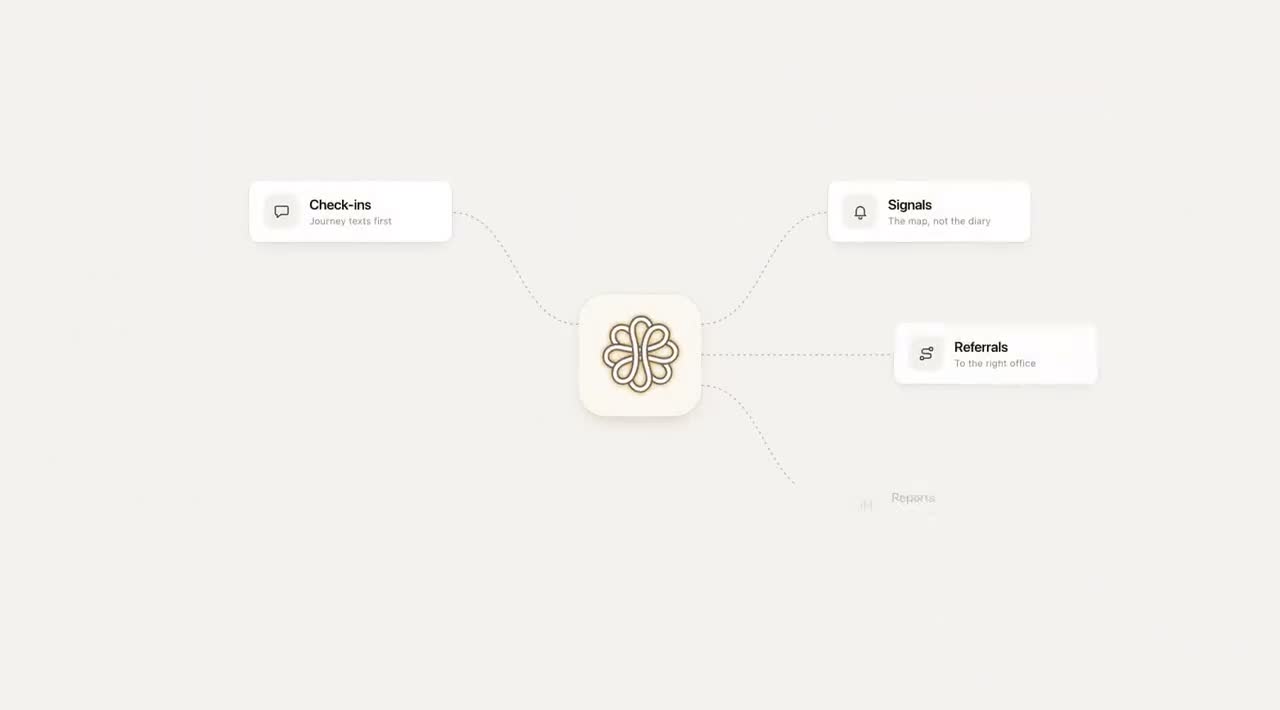
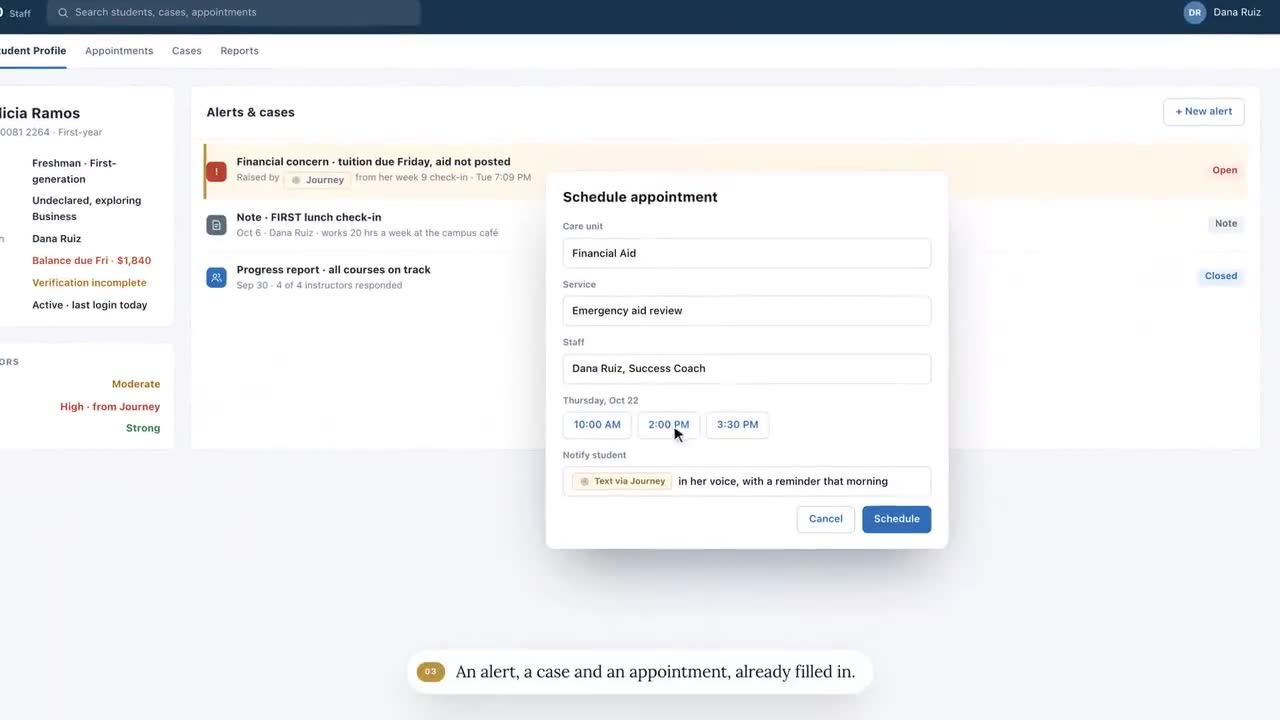
Live feeds from Canvas, Banner and Navigate360, with each signal labeled by the system it came from as in the demo at the top of this page, aren't running at any campus today. Neither is the seven-system sync below. What a campus connects depends on what its systems offer and what its IT team approves.
Questions to ask any vendor about integrations
- Which of our systems do you connect to today, and by what method: API, export or something else?
- What's the smallest set of fields you need for a pilot?
- What do you write back, to which system, and who can see it there?
- What happens when a feed fails or a file arrives empty? Who finds out, and how fast?
- If we add a new hold code or alert type, what breaks?
- What's deleted when a student opts out, and when the contract ends?
Take the answers to your registrar and IT security together. If the field list fits on one page and every field maps to a nudge or a handoff, the approvals tend to move.
Frequently asked questions
How do student success tools integrate with Banner?
Two common routes: Ellucian's Ethos integration platform, where your IT team creates an application, grants it access to specific resources and issues its API key, or scheduled extracts from Banner's reporting tables. Which options you have depends on your version, hosting and licenses.
What data does a student texting platform need from the SIS and LMS?
Typically names, mobile numbers, student IDs and texting consent, advisor assignments, class meeting times, hold types, missing assignments and early alerts. Grades, GPA, risk scores and aid packages are rarely needed for texting and are better left out.
Does Canvas have an API for outside tools?
Yes. Canvas has a documented REST API, and administrators issue developer keys that can be limited to specific endpoints. LTI is the standard for tools that run inside a course, which a texting tool usually doesn't need.
Can an outside tool write back to Navigate360?
It depends on your contract and configuration, so ask your EAB contact what your campus can export or update. Many teams start with reports and exports, and have staff add outcome notes until an automated route is approved.
Who needs to approve a student data integration?
Usually the registrar for student record fields, IT security and the CIO for the security review and connection method, counsel or the privacy officer for the data agreement, the owner of each system, and the financial aid director if any aid data is involved.