Navigate360 and Journey: How a Texting Layer Fits Your Success Platform

Navigate360 already lists two-way texting. When a separate texting layer earns its place, how it fits beside your system of record, how data moves, and how to keep students from hearing from both at once.
Key takeaways
- Navigate360 stays the system of record for appointments, alerts, cases and notes. A texting layer like Journey runs the conversation that gets students into them.
- Staff-initiated texting works when staff start the conversation and can read the replies. It strains when volume outruns staff hours or the quiet students never come up.
- Journey reads from Navigate360 through an API or export where your instance offers one, or through its web screens with a limited account set up with your IT team where it doesn't. Writing outcomes back automatically isn't shipped.
- Before launch, decide which sender handles which message, share one opt-out list and count every text a student gets from both.
If your campus runs Navigate360, you can already text students from it: EAB lists two-way SMS among the platform's features. That makes the case for a separate texting tool harder, and it should. A second sender is only worth adding if it does a job the first one can't, and sometimes it doesn't. This article says when.
The short answer: Navigate360 stays your system of record for appointments, alerts, cases and notes, and texting students from it works well when staff start the conversation and have time to read the replies. A texting layer like Journey earns its place when the problem is the conversations nobody has time to start: reaching every student first, reading every reply, and getting the student into the appointment that already lives in Navigate360.
What Navigate360 does, as EAB describes it
EAB calls Navigate360 the leading higher education CRM and says more than 850 institutions use it. Its product page lists appointment scheduling for students, faculty progress reports, automated alerts and messaging, cases and referrals, analytics including a predictive model and intervention effectiveness, two-way SMS, a self-service student app, an AI assistant for staff and a student-facing AI knowledge agent. EAB describes it as a cloud-based service hosted on AWS.
That's a wide platform, and on most campuses that run it, it's the place advisors live. Nothing in this article suggests replacing it. The narrower question is who starts the conversations that get students into those appointments, and who reads what comes back.
Texting students from a success platform
Staff-initiated texting, on any platform, tends to follow the same pattern. An advisor or an office picks a caseload or a list, writes a message, and sends it. Replies come back to the sender, or to a shared inbox. That's genuinely useful for appointment reminders, registration pushes and an advisor's own check-ins with students they know.
It strains in three places:
- Volume follows staff hours. A message to a few hundred students can bring back dozens of replies by evening. Someone has to read them, and the ones that matter most often arrive after the office closes.
- The message is about the institution's calendar. "Registration opens Monday" is important, but it's the same text for everyone. Students answer faster when the text is about something they said they wanted.
- The quiet students stay quiet. The student who never books, never replies and never comes up in an alert doesn't generate a reason for staff to text them.
None of that is a flaw in Navigate360. It's the limit of any approach where every conversation begins with a person on staff deciding to start it. EAB also lists automated alerts and messaging, campaigns with a template library and a student-facing AI agent, so how much of this applies to you depends on what your campus has switched on.
What a texting layer adds
A follow-through layer starts conversations on the student's schedule, reads every reply as it arrives, and hands staff the short list of students who need a person. The record stays where it is.
| Stays in Navigate360 | Journey handles |
|---|---|
| Appointments, availability and scheduling | Nudges built from each student's goals, timed to their windows |
| Faculty progress reports and alerts | Reaching the flagged student by text, with one question they can answer in a character |
| Cases, referrals and their status | Reading each reply for what it's really about and how soon a person should see it |
| Advising notes and the student record | A one-tap scheduling link for the office that can help |
| Analytics and predictive models | A short list of students who need staff attention, with themes instead of transcripts |
Journey texts over SMS and iMessage, with nothing for students to install. Students choose their goals and the voice Journey uses in a 90-second onboarding, and they get a few texts a week, inside the windows the student chooses, never more than one proactive text a day and nothing in quiet hours. They can also ask anything about campus and get answers from a resource base gathered at setup. Journey works out what each reply is about and how soon someone should see it, and safety language goes straight to people through the escalation process your campus sets. In a typical week of the University of New Haven pilot, 74% of students replied to Journey or acted on a nudge.
Triage that moves students between Journey and Navigate360 automatically isn't shipped. Today, staff see the short list in Journey's dashboard and act on it in Navigate360 themselves, the way they already work.
How data moves between the two
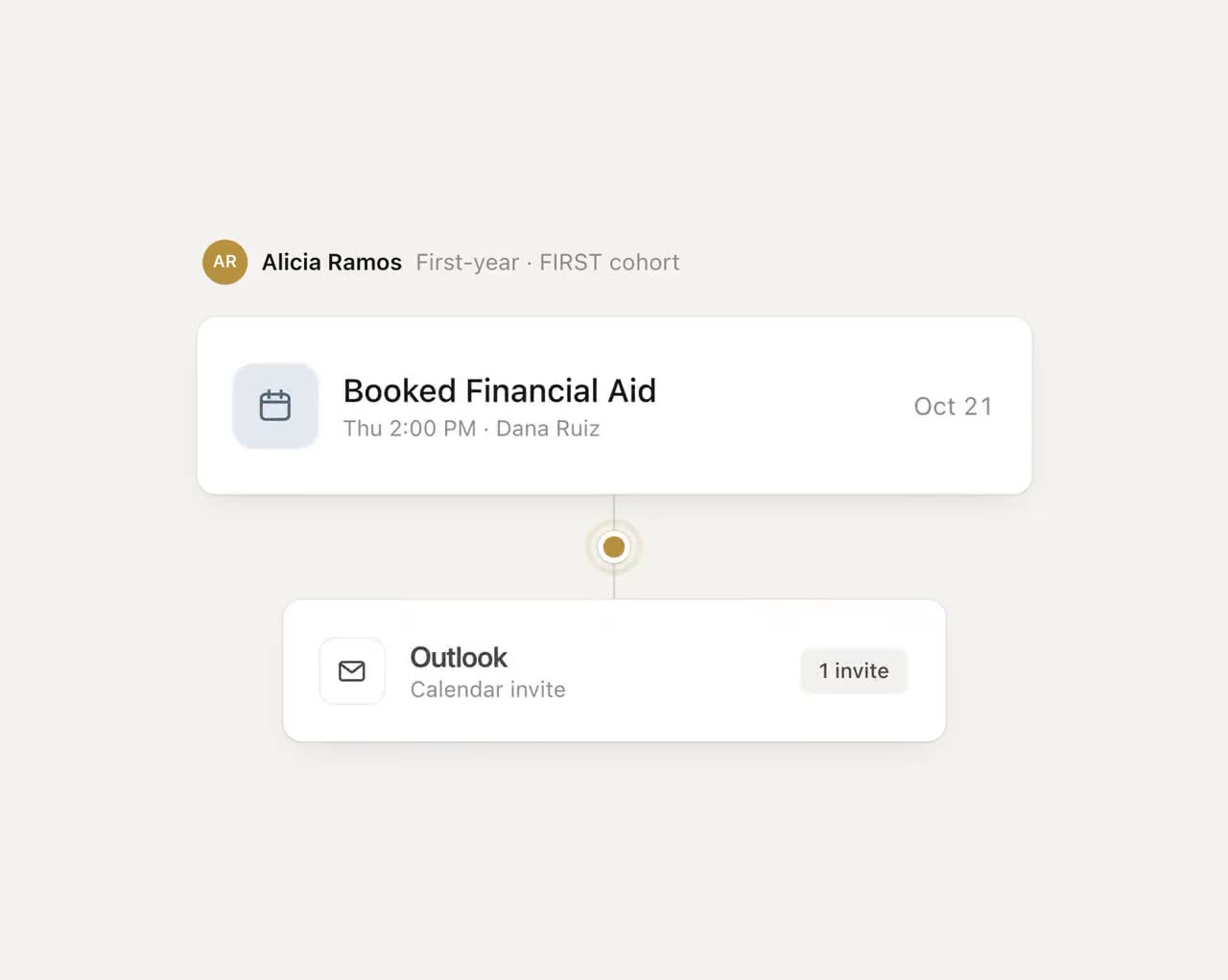
Two flows matter. Into Journey: who's in the cohort, and which alerts or referrals need outreach. Journey can read these through an API or an export where one exists. Back toward Navigate360: what the student said they need (with their consent), whether they booked, and what happened. Writing outcomes back automatically isn't shipped, so for now your staff record them in Navigate360 the way they already do.
Journey connects to campus systems where they offer an API or an export. EAB describes Navigate360 as system-agnostic and says partners can pull data through a suite of APIs and a regular bulk data export. What's available for your Navigate360 instance depends on your license and configuration, so the first conversation is between your IT team, your EAB team and us. Common starting points are a scheduled roster export and the booking links your offices already share with students, which Journey can text as one-tap links without any integration at all.
Whatever the route, set one default in writing: an office gets what it needs to help, and the student's own words stay the student's unless they agree or safety is at stake. Journey's dashboard is built that way, showing staff themes rather than transcripts.
One student, two senders, no double texts
The fastest way to annoy students is to text them from two campus numbers about the same thing on the same afternoon. Decide the lanes before the first send and write them down.
| Message | Sent from |
|---|---|
| Appointment confirmations and reminders | Navigate360, where the appointment lives |
| Office campaigns ("registration opens Monday") | Whichever system the office already uses, on a shared calendar |
| Nudges toward the student's own goals | Journey |
| First outreach after a faculty alert | Pick one and write it down; on a pilot cohort, usually Journey, with the alert itself staying in Navigate360 |
| Campus questions at 11 PM | Journey |
| Anything with safety language | People, through your escalation process, whichever number it arrived on |
Two more rules. Keep one opt-out list where your policies allow it, because a student who texts STOP has told the campus something. And count every text a pilot student gets in a busy week from both systems combined. If the number surprises you, cut before launch, not after the complaints.
Where Navigate360 on its own may be enough
We'd rather you not buy something you don't need. Navigate360's built-in texting may be all you need if:
- Your advisors already text students from it and have the hours to read and answer replies, including in the evening.
- Your goal is appointment volume and reminders, and that's working.
- You're rolling out EAB's student-facing AI agent and want a fair term to judge it before adding anything.
- Your IT team can't take on another vendor review this year. A pilot that starts in a rush rarely gets a fair reading.
A layer like Journey makes sense when you can say plainly which students aren't acting and why staff texting alone isn't reaching them.
What to tell advisors and students before launch
Advisors need three facts: which messages will now come from Journey, where they'll see the students who need them (Journey's dashboard, plus alerts in your team's Slack, with the record still in Navigate360), and what to say when a student mentions a Journey text in an appointment. A one-page note and fifteen minutes at a staff meeting cover it.
Students need one: who is texting them and why. Send it from a channel they already trust, such as an email from the advising center or the dean of students' office, before the first text arrives. Journey's first message picks up from there.
A one-term pilot alongside Navigate360
- Pick a cohort that already generates alerts. First-years in gateway courses, or a first-generation program. A few hundred students is enough to learn from.
- Set the lanes. Use the table above. Tell advisors which messages will come from where, so nobody sends a duplicate.
- Start with the simplest data route. A roster export and your existing booking links. Add anything more once the basics work.
- Gather the campus details. Expect about eight hours of staff time to set up a 100-student pilot, most of it gathering the campus resource details Journey can't find publicly.
- Measure in Navigate360's terms. Time from alert to first contact, the share of referrals that become kept appointments, and how long cases stay open, against a comparable cohort or the term before. Define each one before you start.
- Hold a 30-minute weekly review. Who needed a person, what happened, what to change.
Questions to ask before you start
Your EAB team: Which texting and AI features are in our current license? What exports or APIs can a third party use for our instance, and with what permissions? Where are opt-outs stored, and can they be shared with another sender?
Journey, or any texting vendor: Exactly how will you read from and write to Navigate360 at our campus, not in general? What happens when you can't? What do our advisors see, and what stays private to the student? What happens when a reply contains safety language at 2 AM? Which parts of your demo are live today?
The answer you're looking for is a plain one: Navigate360 keeps the record, the texting layer keeps the conversation going, and every student knows which number is which. If a vendor can't draw that line for your campus in the first meeting, keep looking.
Frequently asked questions
Can you text students from Navigate360?
EAB lists two-way SMS among Navigate360's features. What's switched on at your campus depends on your license and configuration, so check with your EAB team.
Why add another texting tool if we have Navigate360?
Only if it does a job Navigate360 texting isn't doing for you, such as reaching every student first on their own schedule, reading every reply as it arrives, and getting students into appointments that live in Navigate360. If your advisors already text well and have time to read replies, you may not need one.
Does Journey integrate with Navigate360?
Journey can read rosters and alerts where your Navigate360 instance offers an API or an export, and what's available depends on your license and configuration. Writing outcomes back automatically and sending referrals straight into Navigate360 are not shipped. Where there's no API, Journey can work through the system's web screens with a dedicated, limited account, set up with your IT team during a pilot.
How do we avoid texting students twice from two systems?
Give each sender a lane in writing, for example appointment reminders from Navigate360 and goal-based nudges from Journey. Keep one campaign calendar, share one opt-out list where your policies allow, and introduce each number to students before it sends.