A Calmer Dashboard for Student Success Teams

In October 2026 we redesigned Journey's partner dashboard for staff who check it between appointments. What changed, what stayed, and six tests for any student success dashboard.
Key takeaways
- A student success dashboard's daily job is to show who needs a person, why, and what has already been tried. Board reporting is a separate job.
- Busy dashboards fail quietly: when every number is colored and every tile weighs the same, staff stop opening them.
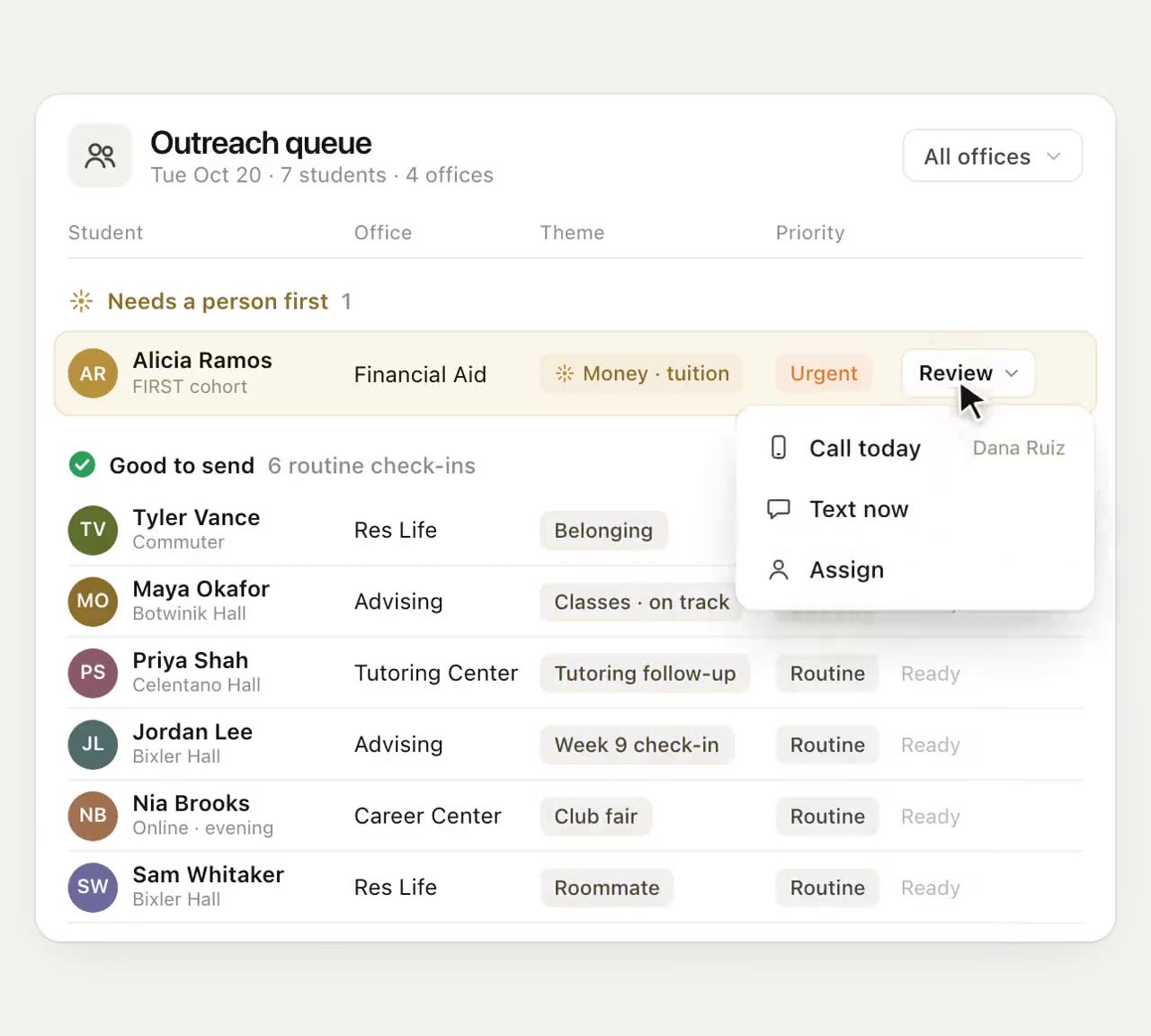
- The October 2026 redesign leads with who needs a person this week, under a single strip of figures, with one type scale, color only where it means something and quiet bars.
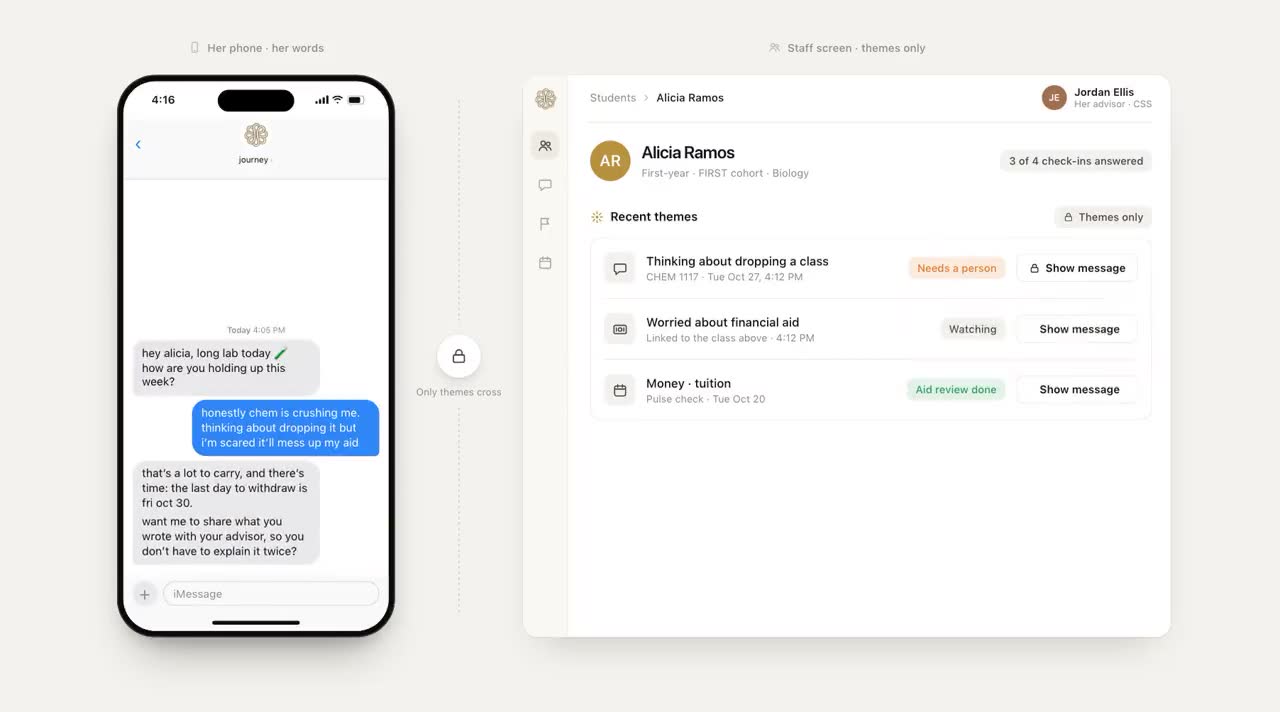
- Staff still see themes, not transcripts, and notes from meetings stay in the student's record.
It's 10:52. An advisor has eight minutes between a 10:30 and an 11:00, and she opens the student success dashboard to see whether anything needs her before lunch. If the screen makes her hunt (six tiles, four colors of red, a chart with a legend she has to decode), she closes it and goes back to her inbox. The dashboard didn't fail because the data was wrong. It failed because it asked for more attention than she had.
That's the problem we set out to fix when we redesigned Journey's partner dashboard in October 2026. This note covers what changed, what didn't, and how to judge any student success dashboard by the same standard.
What a student success dashboard is for
A student success dashboard has one job most days: tell the person looking at it which students to reach today, why, and what has already been tried. Reporting to the provost, trend lines for the board and term-over-term comparisons all matter, but they're a different job with a different reader. When one screen tries to do both, the urgent thing ends up the same size as the interesting thing.
Staff check the dashboard in the gaps of their day: between appointments, after a walk-in, before a huddle. Design for those few minutes and the quarterly report still works. Design for the quarterly report and those few minutes are lost.
Why busy dashboards get ignored
Most dashboards don't fail loudly. They just stop getting opened. The usual reasons:
| What the screen does | What the reader learns |
|---|---|
| Colors every number red, amber or green | Color means nothing, so ignore it |
| Shows a dozen figures in tiles of equal weight | No idea which one to act on |
| Uses five type sizes and three weights | Everything is shouting, so nothing is |
| Puts charts above the list of students | Scroll past the pictures to find the people |
| Opens to full message logs | Reading one student takes ten minutes, and feels like snooping |
None of these are data problems. They're attention problems, and attention is the scarcest thing a student success team has in week six.
What changed in the October redesign
The redesign was mostly subtraction. Five changes do most of the work:
- One strip of figures at the top. The handful of numbers worth glancing at sit in a single row, instead of a wall of tiles competing for the eye.
- Then the people. After that strip, the page leads with the students who need a person this week.
- One type scale. Fewer sizes and weights, used the same way everywhere, so the page reads in one pass.
- Color only where it means something. Most of the screen is neutral. When color appears, it's there because something deserves a look.
- Quiet bars. Charts that sit back in muted tones and show a shape, rather than demanding to be studied.
What stayed the same
The redesign changed how the dashboard looks, not what it knows or who can see it.
- Themes, not transcripts. Staff see what a student's replies were about, such as money or a lab that clashes with a work shift, not the messages themselves. We call it the map, not the diary.
- Notes from meetings still live in the student's record, so the next person who opens it sees what the last person learned. More on that in our note on meeting notes.
- Staff alerts and approvals still go to your team's Slack.
The themes rule matters more than it looks. It makes the dashboard faster to read, and it respects the student: staff get what they need to act, and nobody gets a reason to browse.
Asking questions of a cohort, where we're headed
Sometimes the question isn't "who needs me today" but "which first-years mentioned money this week" or "how is this one student doing before Thursday's meeting". In the demo below, staff type those questions in plain English and get an answer with its sources listed. Ask Journey isn't in the product yet and wasn't part of the October release; today, those answers come from reading the dashboard itself.
How to judge any student success dashboard
Whether you're looking at ours, a competitor's or one your institutional research office built, open it with a stopwatch and ask:
- In ten seconds, can you name the students you should reach today?
- Does color mean something specific, or is it decoration?
- Is every figure at the top one you'd act on this week? If not, move it to a report.
- Can you see what was already tried for a student before you reach out again?
- What do staff see of the student's own words, and who decided that?
- Does it still make sense on a laptop at 10:52, with eight minutes to spare?
If a dashboard passes those six, your team will open it. If it doesn't, the best data in the building will sit behind a tab nobody clicks.
A calmer screen for a busy job
Student success work is loud enough. On a screen people open between appointments, the students to reach, the reason and what's already been tried should be the easiest things to read. That's the brief we'll keep holding the dashboard to as it grows.
Frequently asked questions
What should a student success dashboard show?
First, the students who need a person this week, with the reason and what has already been tried. Trends and cohort figures are useful, but they belong in a single row or a separate report so they don't compete with the list of people.
Why don't advisors use our student success dashboard?
Usually because it asks for more attention than they have between appointments. Too many colors, too many figures of equal weight and charts above the student list make it slow to read. If you can't name who needs you within ten seconds of opening it, simplify.
Should staff see students' full text messages?
Most of the time they don't need to. Journey shows staff the themes of a student's replies, such as money or a lab schedule that clashes with work, rather than transcripts. That's faster to act on and more respectful of the student.
Can staff ask Journey's dashboard questions about a cohort in plain English?
Not in the October 2026 release. Our demos show staff asking about one student or a whole cohort and getting answers with sources listed. That's the direction we're building toward.